> For the complete documentation index, see [llms.txt](https://docs.getmesa.com/llms.txt). Markdown versions of documentation pages are available by appending `.md` to page URLs; this page is available as [Markdown](https://docs.getmesa.com/connect/recall.md).
# Recall
## Connection
When you're setting up your first workflow with Recall, you will need to create a [connection](https://docs.getmesa.com/going-further/credentials) in order to connect MESA with Recall.
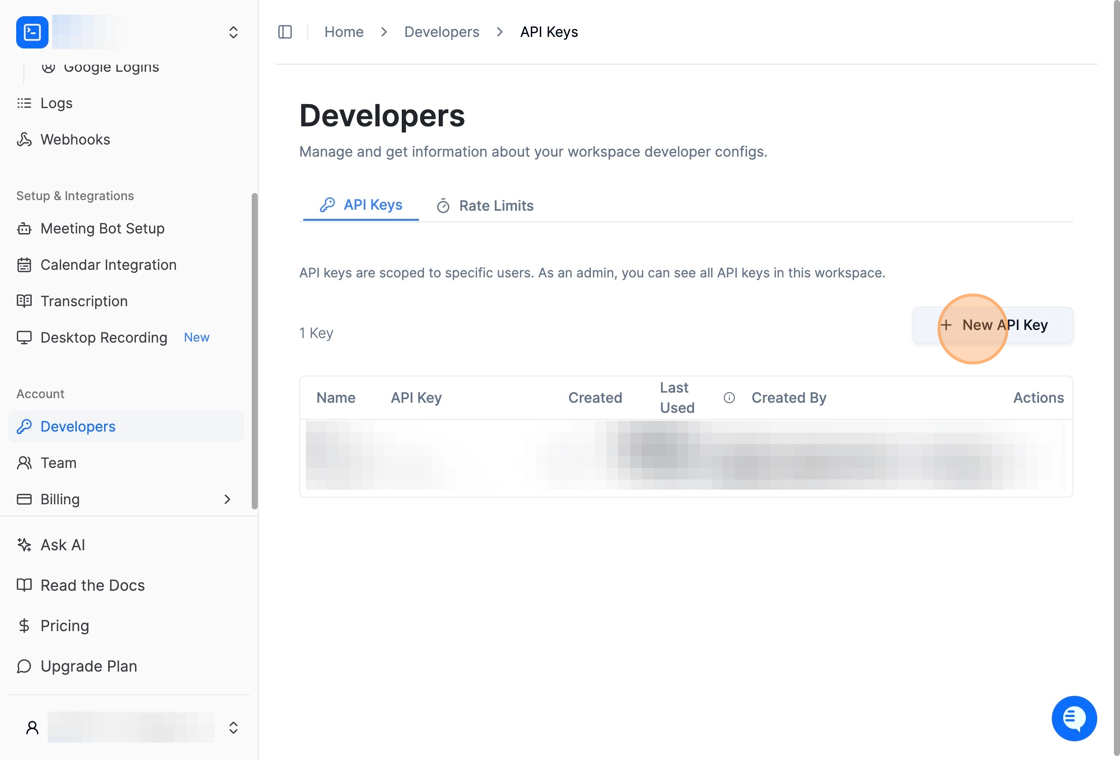
To create your connection, login to your Recall account and generate an API key by going to the Developers menu under Account and click the New API Key button.
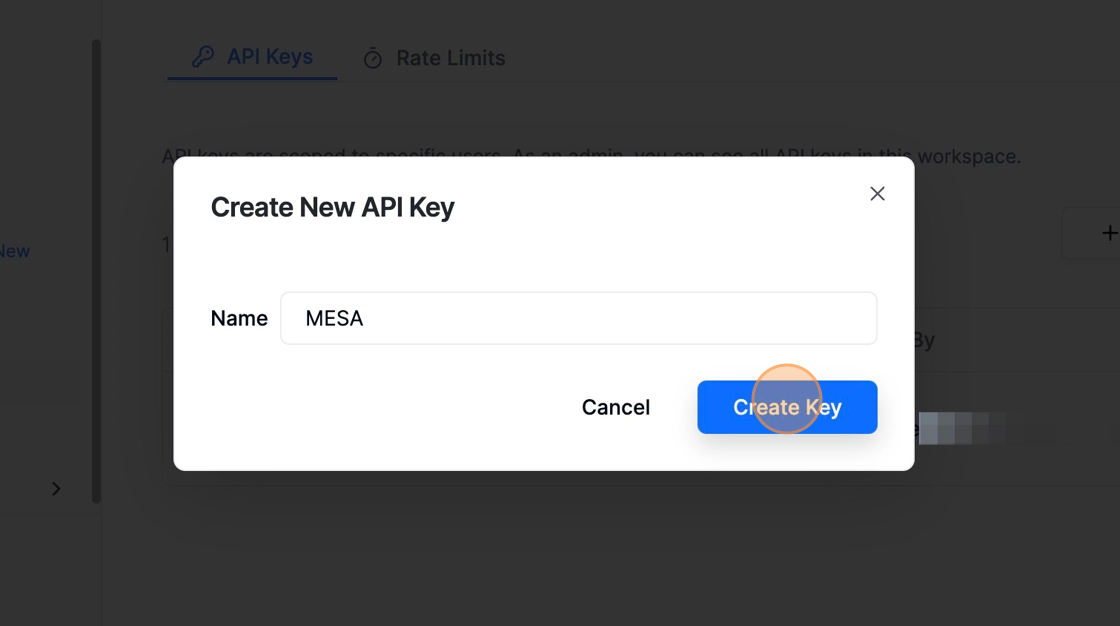
Type MESA for the name and then click the Create Key button.
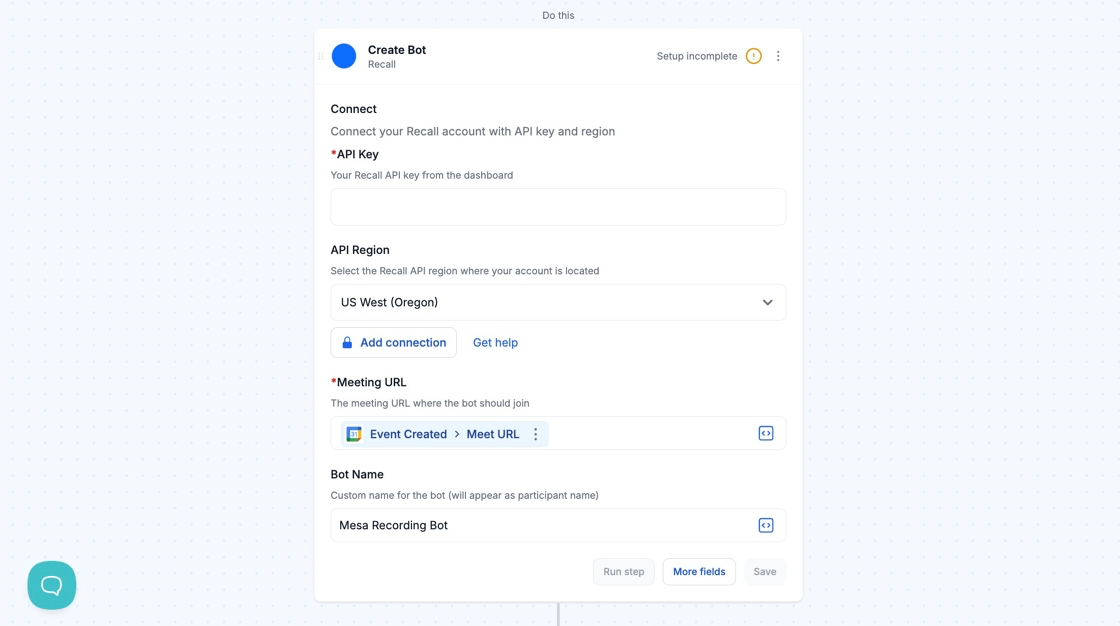
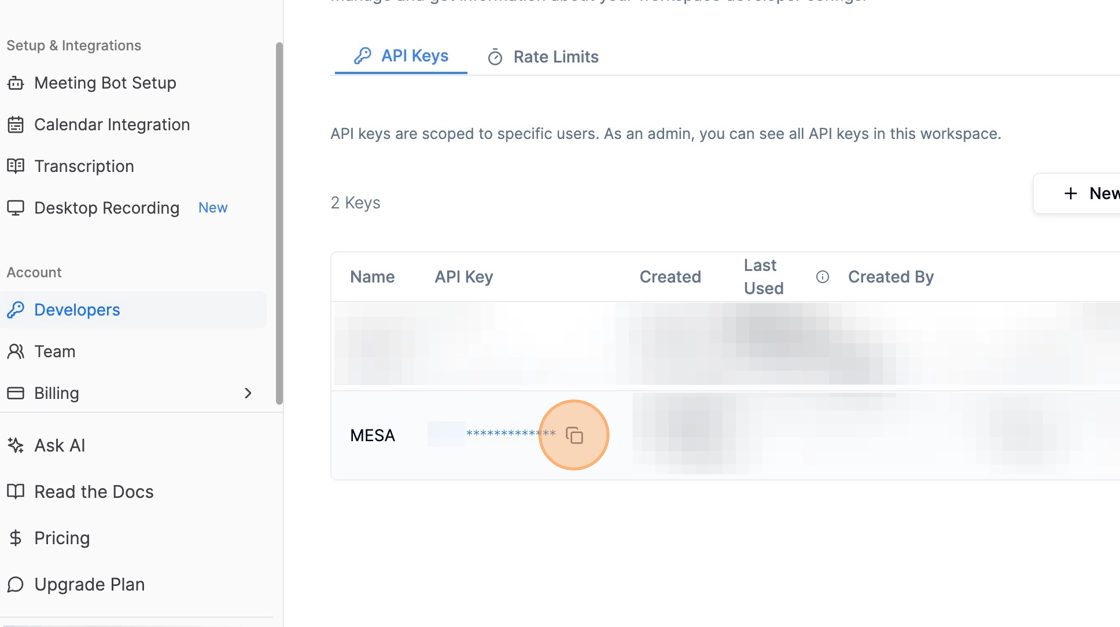
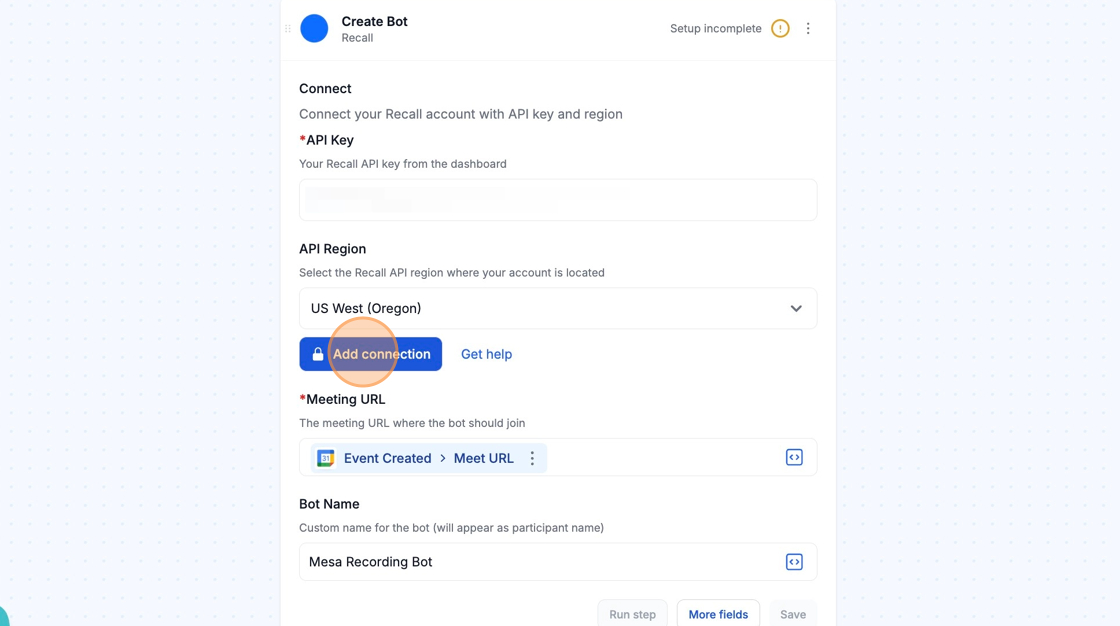
Copy the newly generated API key and paste it into the API Key field of your Recall step in your MESA workflow.
Make sure that your API Region matches the location of your Recall account and then click the Add connection button in your Recall step to complete your connection.
## Configure
### Webhook Configuration
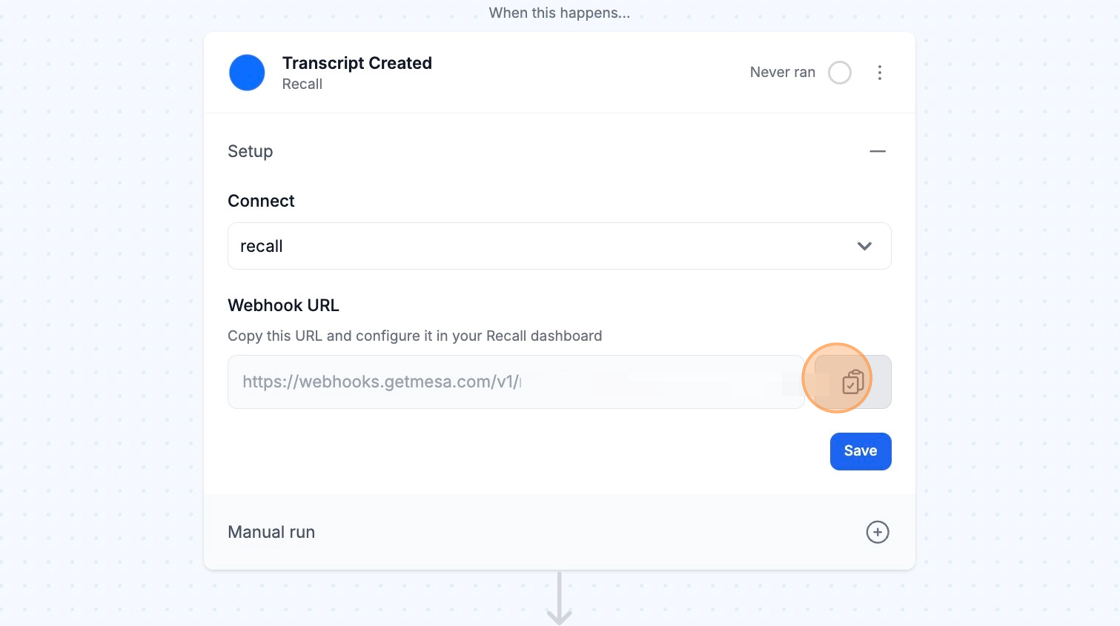
If you're using the Transcript Created trigger, you'll need to add an endpoint in Recall.
To do that, copy the Webhook URL from the trigger step in your workflow.
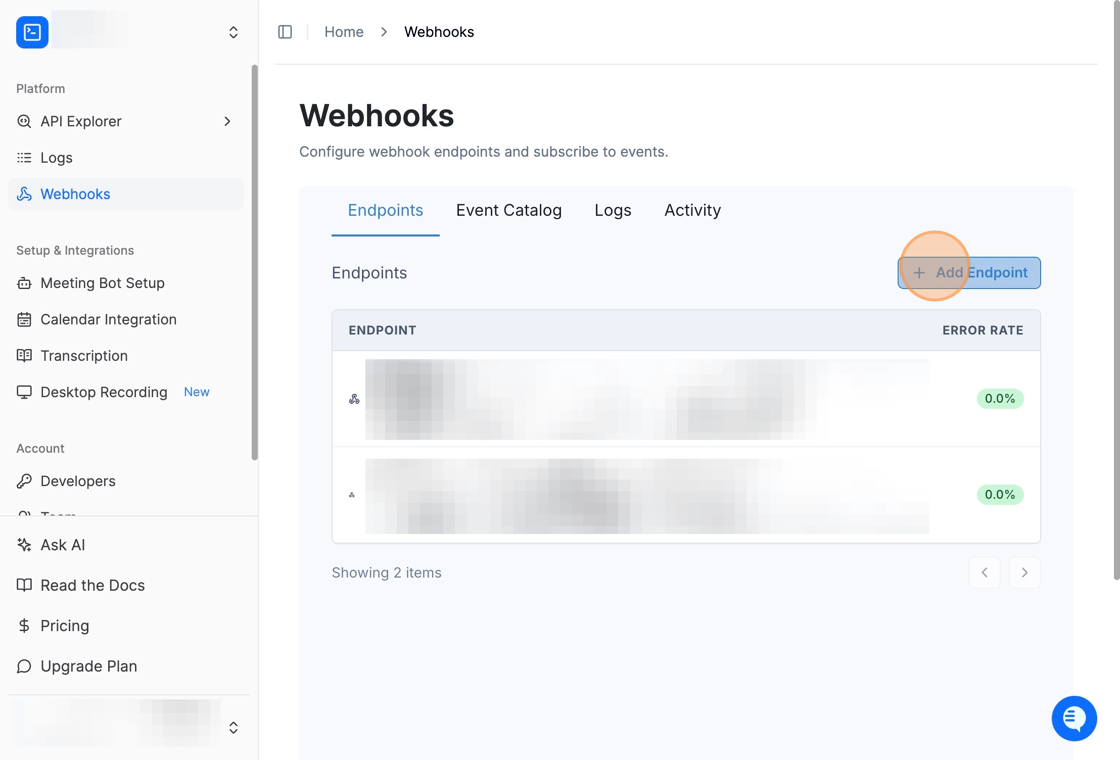
Then, in Recall, go to Webhooks under Platform and click the Add Endpoint button.
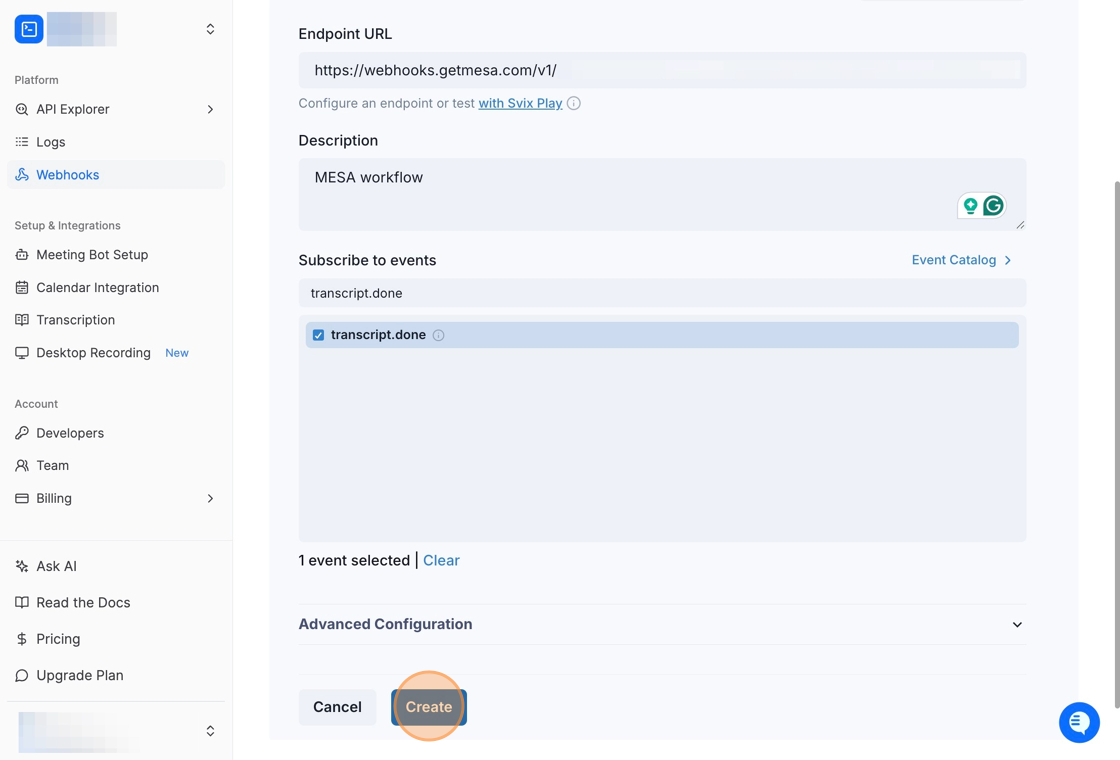
Paste the Webhook URL you copied from the trigger step in your workflow into the Endpoint URL field, add a description, and then subscribe to the `transcript.done` event and click the Create button.
## Technical Notes
* The Create Bot action will integrate with meetings to create transcripts, but you will need to subscribe to a meeting in your workflow in order to do so.
* The Transcript Created trigger will only run when all participants have left the meeting.