> For the complete documentation index, see [llms.txt](https://docs.getmesa.com/llms.txt). Markdown versions of documentation pages are available by appending `.md` to page URLs; this page is available as [Markdown](https://docs.getmesa.com/connect/gemini.md).
# Gemini
## Connection
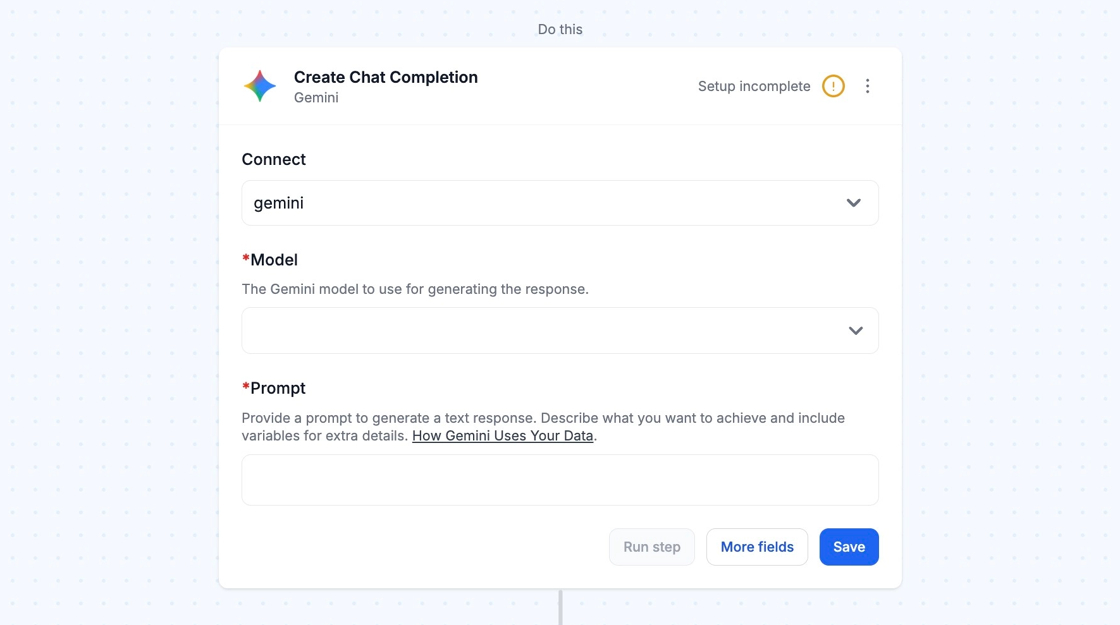
When you're setting up your first workflow with Gemini, you'll need to create an API Key.
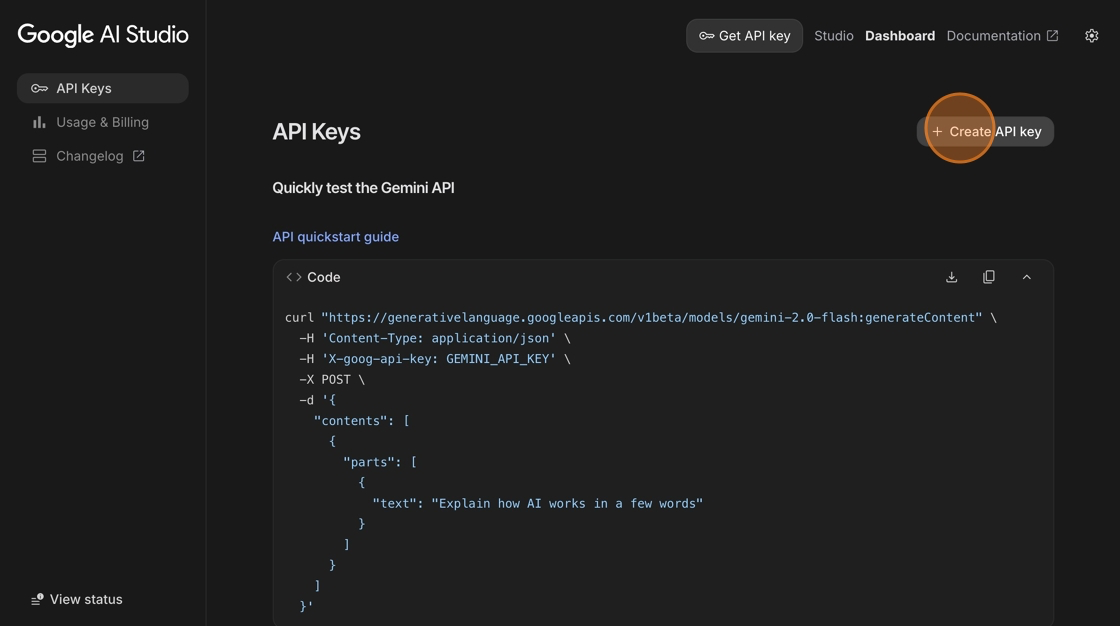
To create an API Key, go to this URL: . Once there, click on the Create API key button or select an existing key.
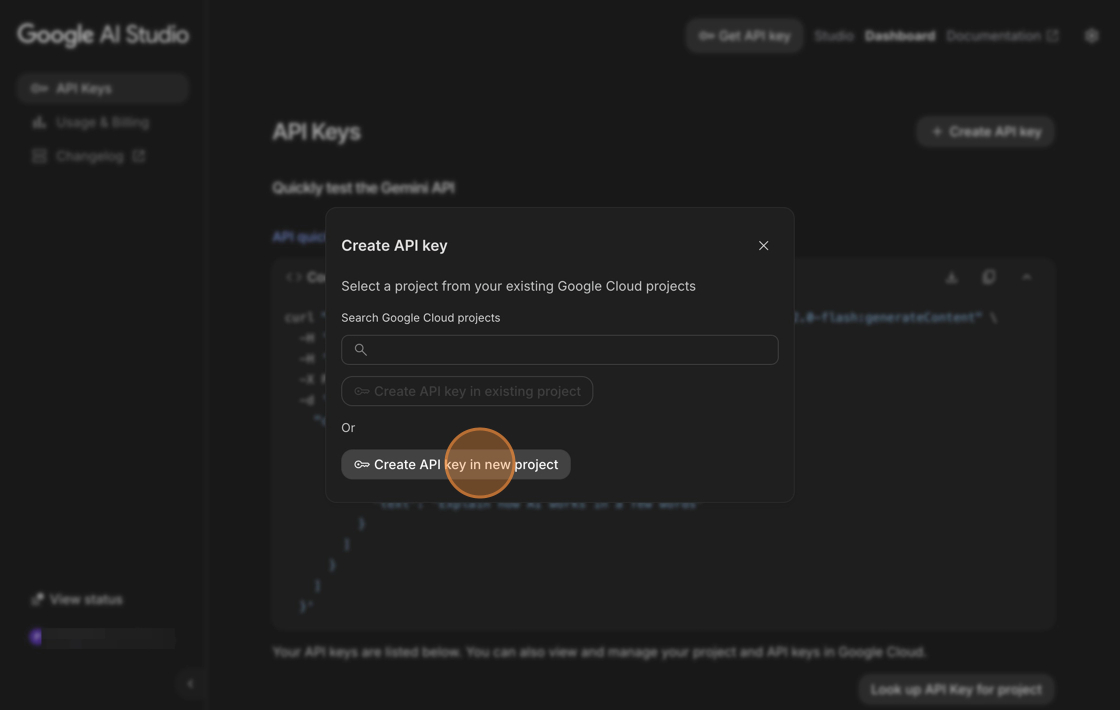
Click the Create API key in new project button and copy the generated API key.
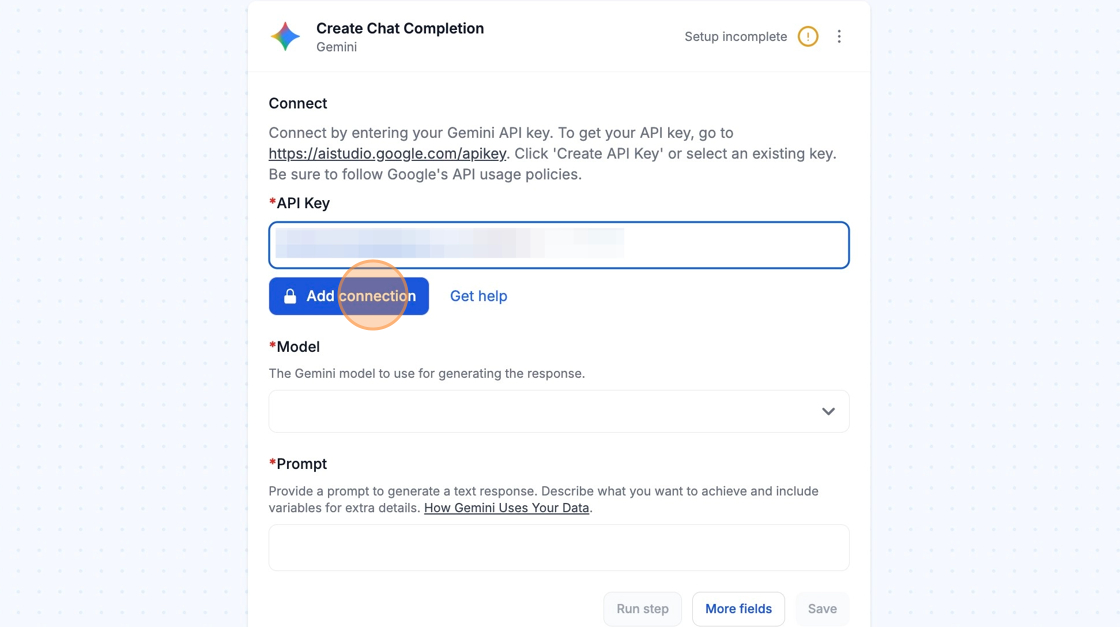
Paste the copied value into MESA's Gemini API Key field.
Lastly, click the Add connection button and you're all set! MESA is now connected with Gemini.
## Configure
#### Following Gemini's Usage Policies
Please ensure that you follow Gemini's Usage Policies when using MESA's Gemini integration:
#### ShopPad's Recommendation
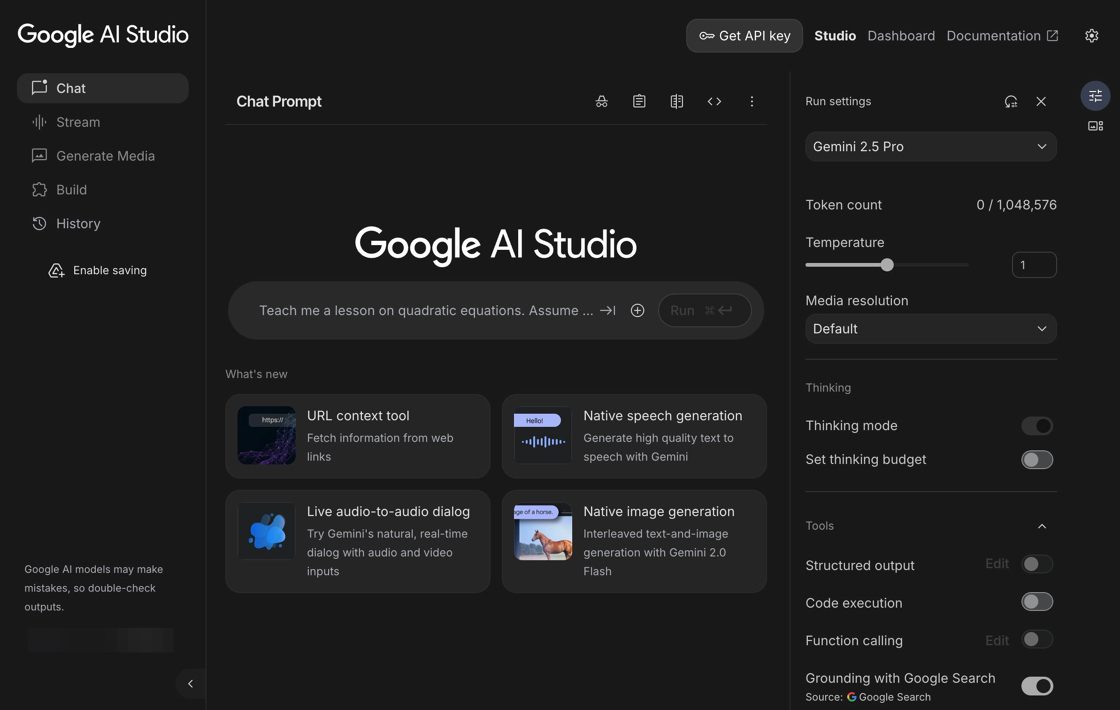
We recommend using Gemini's [playground](https://aistudio.google.com/u/2/prompts/new_chat) when testing with MESA's Create Chat Completion action. This allows you to try different models and prompts and will estimate the token cost for each automation.
As Gemini is not our product, we would like to note that we are not responsible for its output. We recommend visiting the Gemini website and attempting to replicate your preferred prompt using the Gemini UI to verify that it meets your expectations before trying to automate it with MESA.
### How Gemini Uses Your Data
The Gemini app makes API calls to Gemini. Only the variables explicitly configured in the MESA builder will be shared with Gemini. MESA does not store any of this information beyond your data retention date.
To opt out of any data sharing with AI models, simply do not use the Gemini step in any of your workflows.
[Learn more](https://support.google.com/gemini/answer/13594961?hl=en#what_data) about how and when Gemini uses data to train their models. Read [MESA's Data Processing Agreement](https://www.getmesa.com/dpa).
## Technical Notes
* Each model has its different capabilities and price points. You can review [Gemini's pricing here](https://ai.google.dev/gemini-api/docs/pricing). If you do not wish to incur additional Gemini costs, you can use the [AI tool](https://docs.getmesa.com/tools/ai) as an alternative. Please note that the AI tool is a [premium app which is double the fun and double the automation](/going-further/plans-and-billing.md#premium-steps).
* When using Gemini, please note that you will incur additional costs from Gemini, which depends on how often MESA interacts with Gemini in a single automation run.