> For the complete documentation index, see [llms.txt](https://docs.getmesa.com/llms.txt). Markdown versions of documentation pages are available by appending `.md` to page URLs; this page is available as [Markdown](https://docs.getmesa.com/tools/logic.md).
# Logic
The **Logic** tool lets you contain all of the inner workings of your workflow--filtering, restructuring and looping data--in a single, reliable step. Our AI assistant Yedric can help you build and adjust the logic.
## Configure
### Building a Logic workflow
Start by opening Yedric and asking him to `Build a workflow`. For example:
{% code overflow="wrap" %}
```
Build a workflow that sends Shopify orders over $100 with an "uploadery_1" line item to Google Sheets
```
{% endcode %}
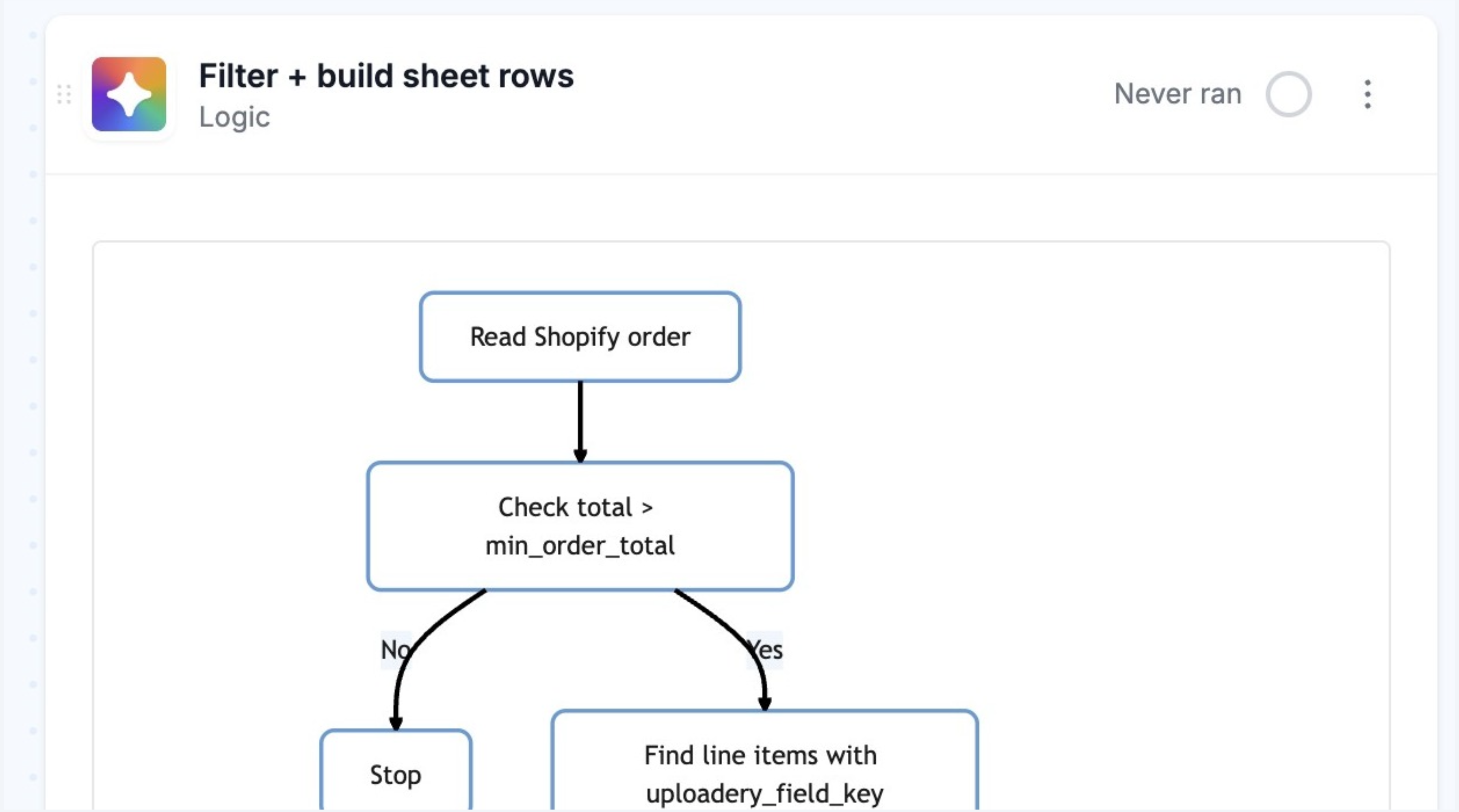
Yedric will look for similar templates. If you decline the template install, he will ask a few clarifying questions, outline your workflow, and get to work adding your trigger, Logic step and action(s). As part of the workflow building, Yedric will write the logic script and build a diagram outlining your workflow's logic:
Once your workflow is built, Yedric will let you know what needs to be done to complete the workflow setup, then walk you through manually running it to confirm it is working as expected. Describe any changes you need to make to Yedric. If everything looks good, turn on your new workflow.
### Editing a Logic step
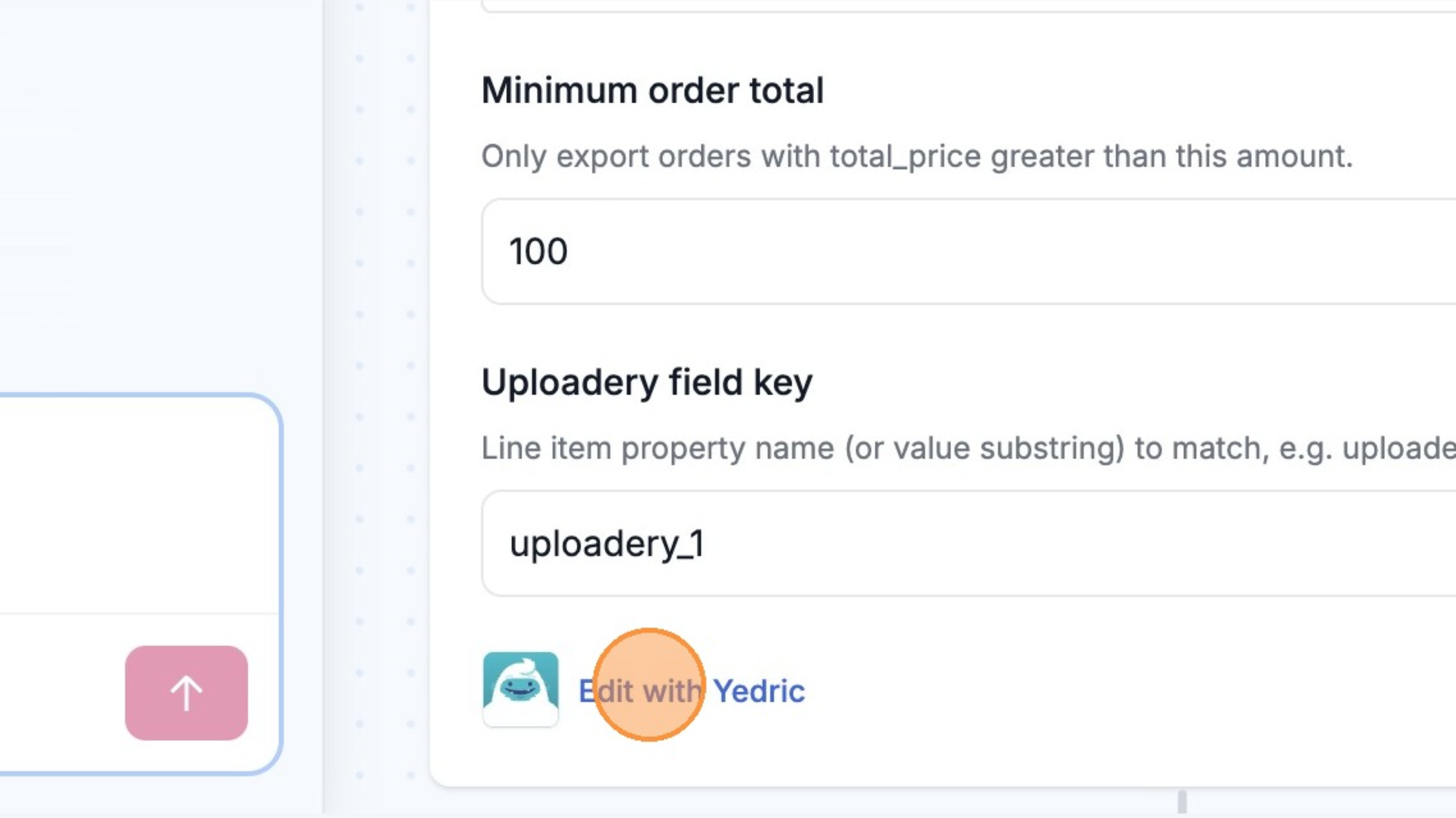
The easiest way to edit a logic step is by clicking the Edit with Yedric at the bottom of the Logic step. Yedric will read your workflow and walk you through making the updates.
If you are technical and would like to get under the hood, you can edit the Logic code. Click on `...` > `Edit Code`, and you can edit the JavaScript code powering the Logic step with the [MESA SDK](/tools/custom-code/libraries/sdk.md).