> For the complete documentation index, see [llms.txt](https://docs.getmesa.com/llms.txt). Markdown versions of documentation pages are available by appending `.md` to page URLs; this page is available as [Markdown](https://docs.getmesa.com/best-practices/organizing-workflows.md).
# Organizing Workflows
## Adding Workflows to Groups
The **Groups** feature offers a valuable way to organize your workflows effectively. By adding workflows to groups, you can categorize and arrange your automations, making them easier to find and manage.
This grouping capability is particularly beneficial as it brings organization and structure to your MESA dashboard. When you have multiple workflows, grouping them logically helps streamline your view and improves overall accessibility and efficiency when working with your automations.
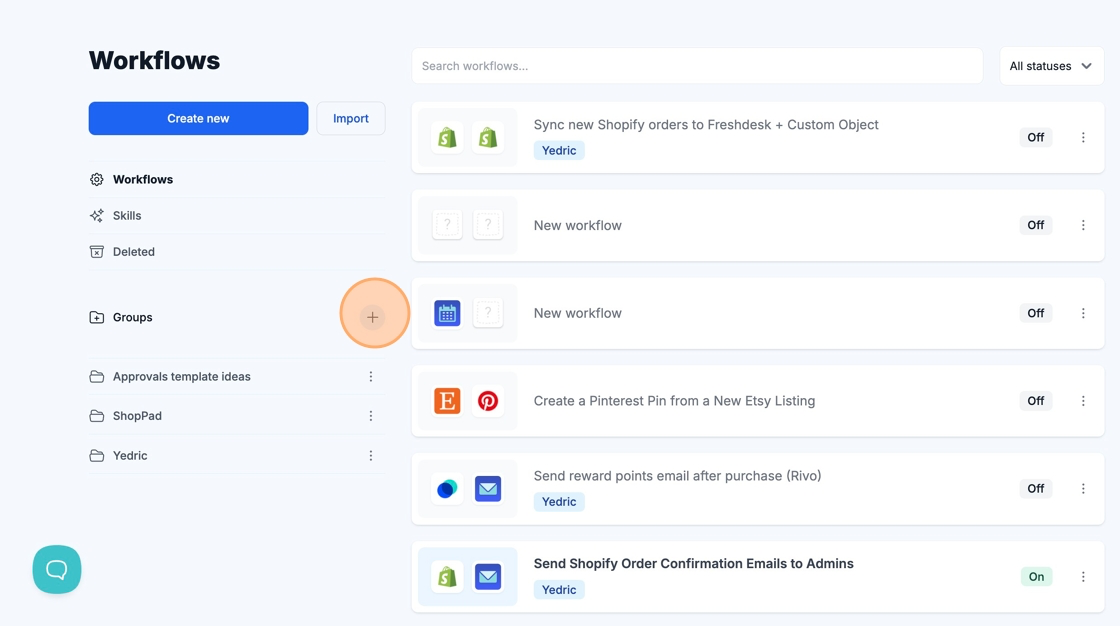
To add your workflows to a group, click the plus icon next to Groups in the Workflows menu.
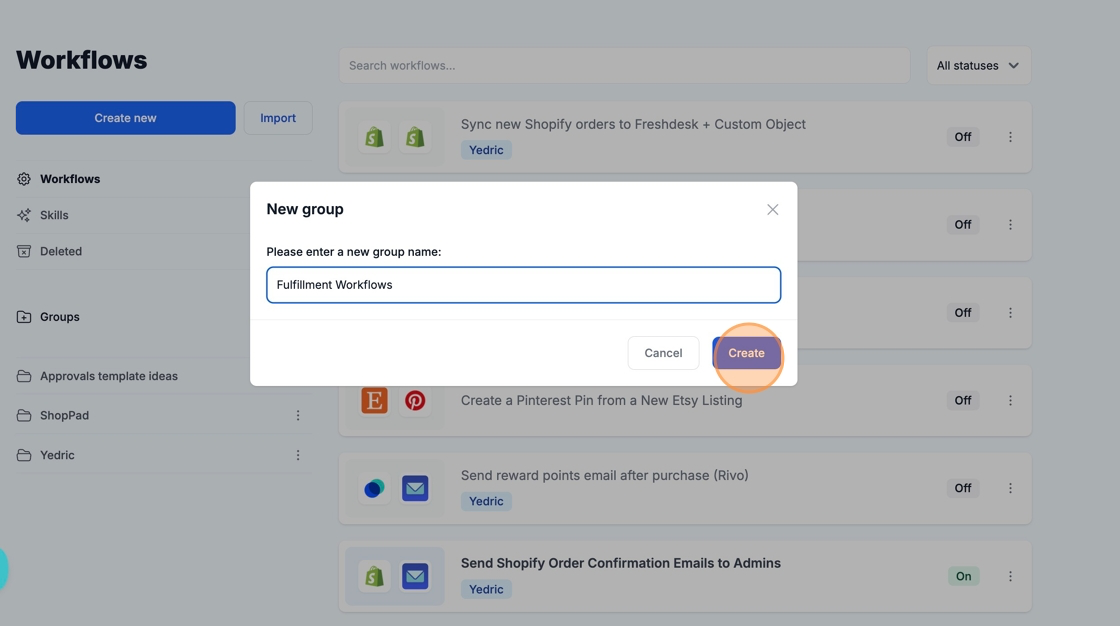
Enter your group name, then click create.
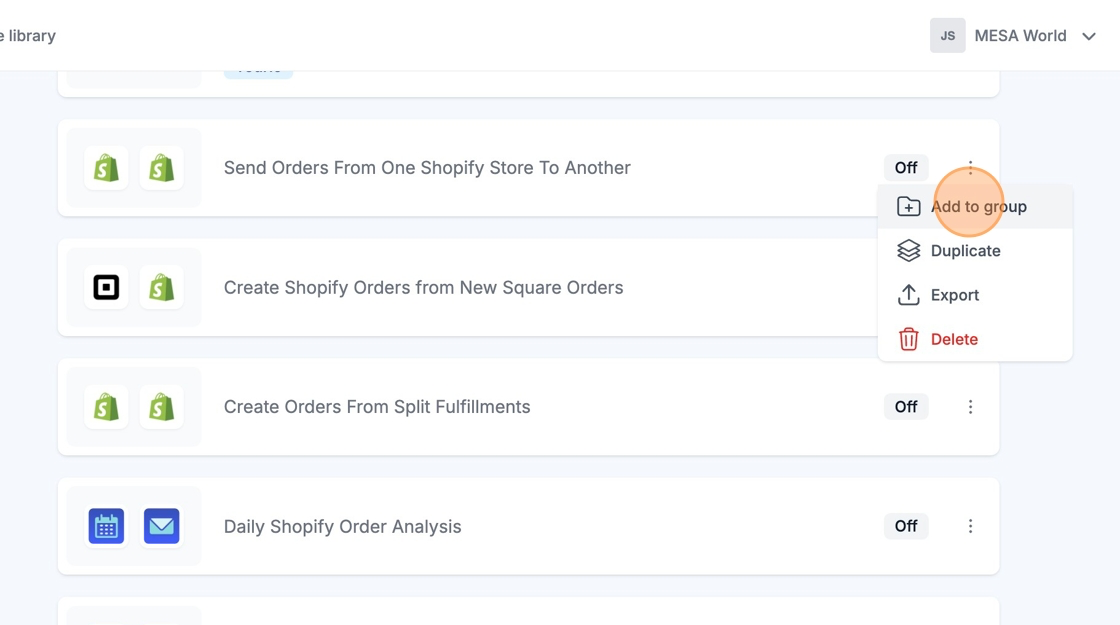
Next, locate the workflows you would like to add to the group and individually click the settings (three-vertical dot icon) to the right of the workflow title to get them added.
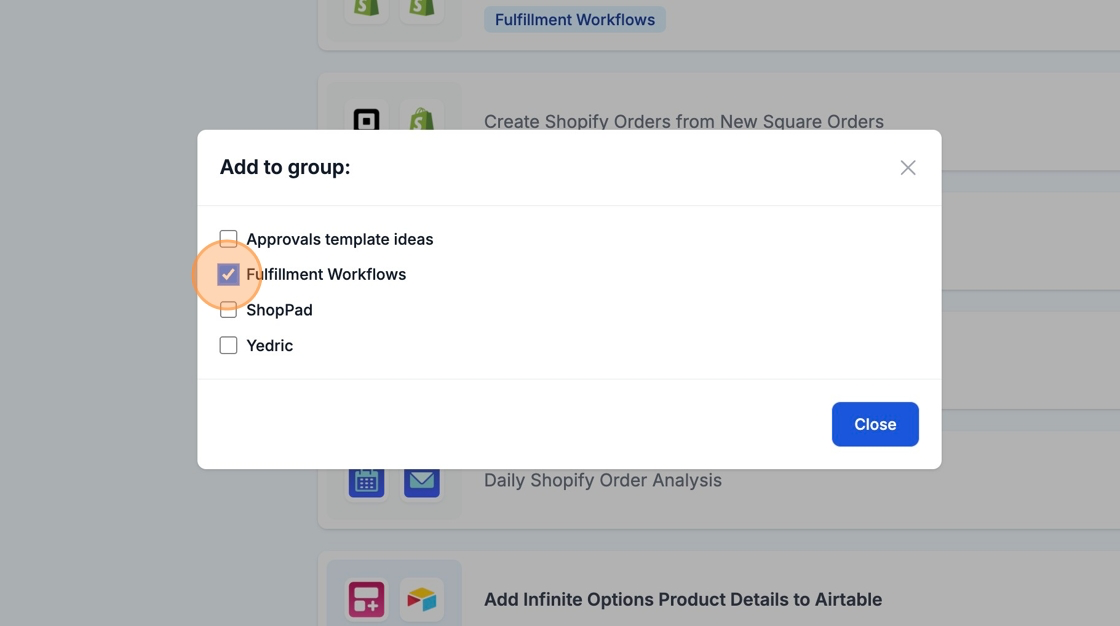
Select the checkbox of the group that you will be adding the workflow to. De-selecting a checkbox removes the workflow from that group.
Repeat this process for each workflow that you would like to add to a group. Workflows can be associated with multiple groups at the same time.
## Accessing and Managing Groups
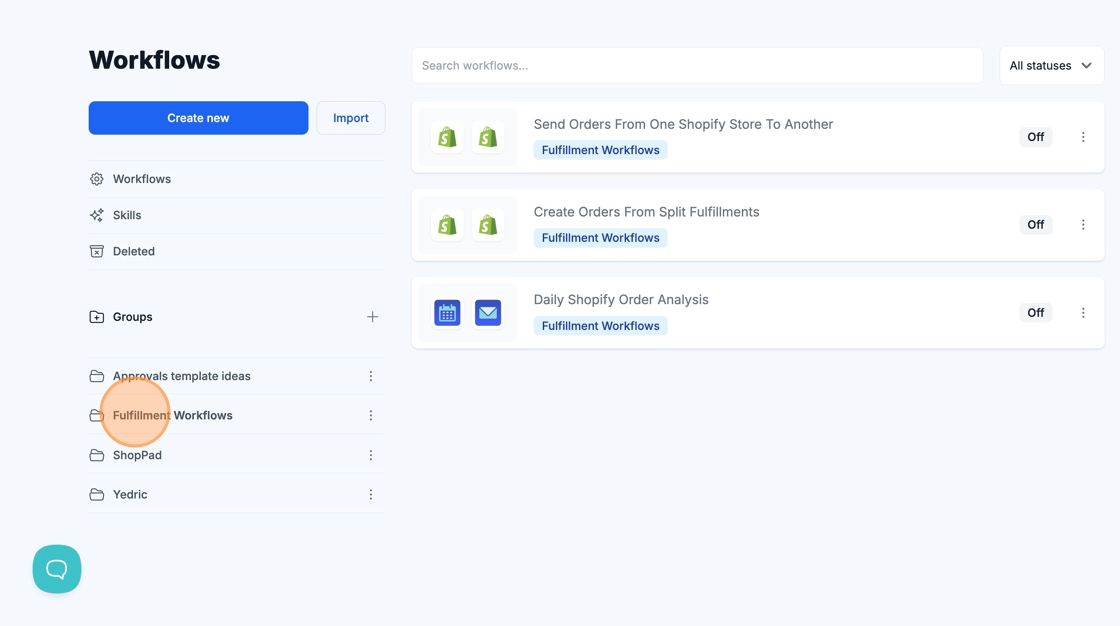
You will be able to see and access the groups you have created on the left side of the Workflows menu.
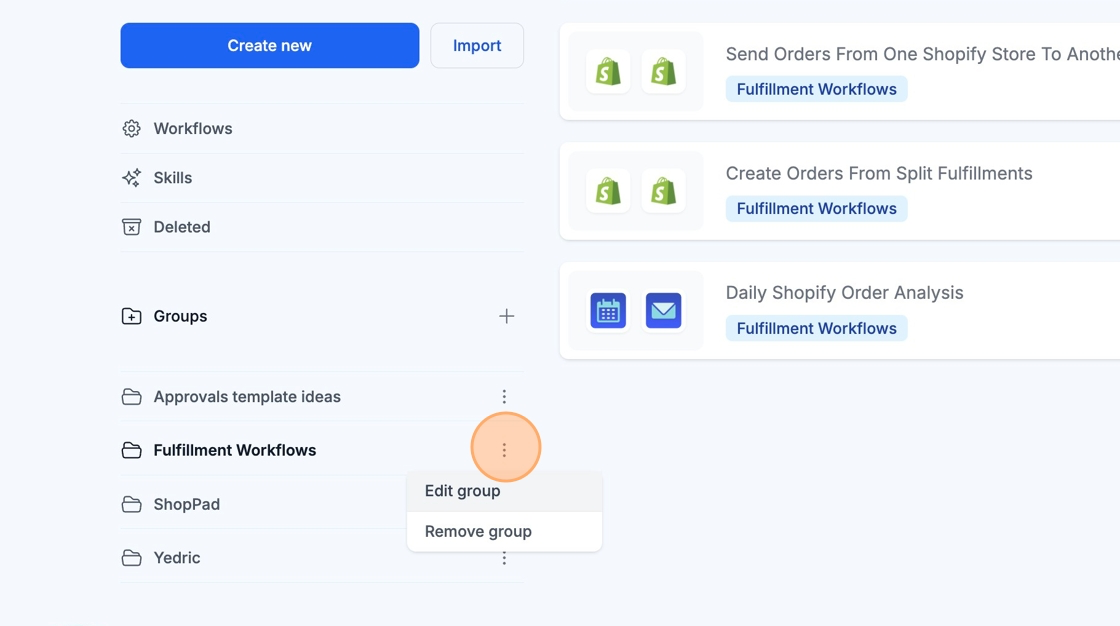
You can always edit your group name or remove it completely from the group settings (three-vertical dot icon) on the right of the group title.